A practical guide to focused work with Boardesa
Use the controls with confidence, make room for breaks and choose work you can inspect. This guide explains the timer first, then develops practical approaches to studying, writing, interruptions and planning.
Give the next piece of work a clear beginning and end
A Pomodoro timer divides work into focus intervals and breaks. Boardesa starts with 25 minutes of focus, a five-minute short break and a 15-minute long break after four completed focus sessions. You can begin without an account or a task list: choose something worth doing, decide what progress would look like and start the countdown.
A useful first target is small enough to inspect: an outline with five points, six attempted questions, a paragraph checked against its sources or a spreadsheet with the totals reconciled. “Finish the project” usually needs several decisions before it becomes an action. Make the first of those decisions before starting, so the opening minutes belong to the work itself.
The clock tells you when an interval has elapsed. It cannot tell whether an answer is correct, an argument is convincing or a document is ready to send. That judgement belongs in your review. The sections below cover the controls, task sizing, scheduling and reviewing results.
Know what each timer control changes
The Focus, Short break and Long break tabs select a mode directly. Start begins its countdown; Pause holds the remaining time, and Resume continues it. Reset returns the selected mode to its saved duration. Skip leaves the current interval and moves to the next mode without counting an unfinished focus as completed. Selecting another mode also replaces the current countdown, so use Pause when you intend to return to the same interval.
Settings accept focus intervals from 1 to 180 minutes, short breaks from 1 to 60 minutes and long breaks from 1 to 90 minutes. The long break can follow 2 to 8 completed focus sessions; four is the default. These ranges describe what the controls accept. They are not targets, and the longest available duration is unlikely to suit every piece of work.
A preset fills in the settings fields. Select Save settings to apply it. Changing the duration of the current mode resets its countdown to the new duration, including a countdown you had paused. If you only change another mode’s duration, the current countdown keeps its remaining time. Make substantial changes between sessions when possible, and read the mode label before starting again.
Every completed interval waits for your response. The completion window shows which mode comes next and how long it will last, and an enabled alarm repeats until you stop it. Its main button names the next action: Start short break, Start long break or Start focus. Select it to stop the alarm and start that countdown immediately; you do not need to press Start again. A focus session leads to a short break, or a long break when the selected number of focuses is complete. Either kind of break leads back to focus. Closing the window with X, Escape or a click outside it stops the alarm and prepares the next mode without starting it. This lets you check the result, save your work or return to the desk before committing to the next interval.
The countdown follows a saved end time rather than merely counting page updates. Returning to the tab can therefore correct the display after a browser delay. Sleep, browser suspension and sound restrictions can still delay an alert. Check the visible mode and completion state when returning from an absence instead of assuming that several unattended cycles have run.
Pick a starting rhythm: 25/5, 50/10 or 15/3
The presets offer three different commitments. The 25/5 setting uses a 25-minute focus, a five-minute short break and a 15-minute long break. It gives a first session a manageable boundary. The 50/10 setting uses 50 minutes of focus, ten-minute short breaks and a 20-minute long break. It leaves more room to develop an argument, trace a problem or work through material that takes time to understand.
The 15/3 setting uses 15 minutes of focus, three-minute short breaks and a 15-minute long break. Try it for a small administrative batch, a limited gap between appointments or a task you keep postponing because the opening feels unclear. A shorter interval still needs a defined result: “sort these twelve receipts” is easier to begin than “catch up on everything.”
Choose according to the next task and the time available. A 50-minute setting is a poor fit when a meeting begins in half an hour. These presets are starting options, not levels to advance through. The section on adjusting intervals explains how to compare them without confusing task difficulty with the effect of a setting.
Prepare a first session in five steps
- Write the intended result. Use an action and an object: “outline the introduction with five points” or “check the dates in the first table.” Choose something you can examine when the interval ends.
- Open the materials. Put the document, book, reference and scratch notes within reach. Close unrelated windows. If you still need to find the right source or file, make that search a separate preparation task with its own stopping point.
- Check the available window. Include preparation, a break and time to save your work. Select a preset or custom duration, then save the settings. Confirm that the clock shows the mode you meant to start.
- Set the environment once. Choose a scene and, if useful, background sound. Set a comfortable volume before starting. Keep a way for an expected urgent message to reach you, particularly when someone is waiting for your answer.
- Start with the first physical action. Type the first outline point, attempt the first question or compare the first pair of figures. When the countdown ends, inspect the result, leave a return note and take the planned break.
For example, a student beginning an essay might open the assignment and notes, write the question at the top of the document and aim to list three possible claims with supporting evidence. That is a useful opening session even though it produces no polished paragraphs. “Write the essay” would hide the choices that need to happen first.
If you cannot start after preparing, identify the missing decision: what does the assignment ask, which file is current or who must approve the result? Resolve that obstacle before resetting the countdown.
Plan elapsed time, including the gaps around the work
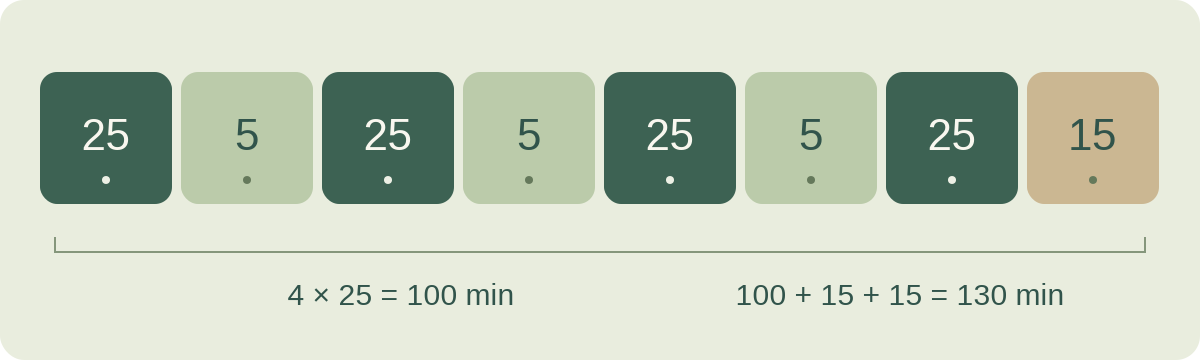
Focus time and elapsed time answer different questions. Four completed 25-minute focus intervals contain 100 minutes of focus. Three five-minute short breaks and the following 15-minute long break add 30 minutes, giving a 130-minute sequence before preparation or interruptions. If you stop immediately after the fourth focus, the elapsed time is 115 minutes: the final long break has not happened yet.
For a sequence ending with its long break, use number of focus intervals × focus duration + short breaks between them + the long break. With three focus intervals and custom 40/8/20 durations, that is 3 × 40 + 2 × 8 + 20 = 156 minutes. The focused portion remains 120 minutes. Decide which number you need before putting the plan into a calendar.
Work backwards from a fixed appointment. If a call starts in 70 minutes, two 25-minute focus intervals with one five-minute break occupy 55 minutes. The remaining 15 minutes can cover opening materials, saving the result and preparing for the call. A third full focus does not fit. Use the remaining gap for a small review task or finish early instead of beginning something you will immediately have to abandon.
Also budget for changes of context. Moving from a design file to a financial report may involve finding references and recalling decisions before the second task can begin. Group related work where practical, and leave room for necessary messages rather than treating every unscheduled minute as available focus.
Name the endpoint: “two focus intervals, then send the reviewed draft by 11:30.” If an interruption uses the spare time, reduce the remaining scope or renegotiate the handover. Removing every break rarely makes an overloaded schedule realistic.
Build a study session around something you can check
Suppose your afternoon includes a biology topic and mathematics practice. In the first focus interval, identify the biology chapter’s main processes and draw a small concept map. In the second, close the chapter and reconstruct the map from memory, then check the missing links. Use the third interval to attempt a chosen set of mathematics questions. In the fourth, revisit errors and explain why each correction works.
Choose questions before beginning the mathematics block. Include a mixture of straightforward applications and problems that require deciding which method to use. If one difficult question occupies most of the interval, keep the attempt and mark the exact point of uncertainty. An unfinished but carefully examined attempt can tell you what to study next; a guessed answer with no working gives you little to review.
For reading, replace a page target with a short explanation: what does the author claim, what evidence supports it and what remains uncertain? You can still note the pages covered, but reaching page twenty does not establish that you understood pages one to nineteen.
End with two lists: questions you can now answer and questions you still need to resolve. Give each unresolved item a next action, such as comparing two diagrams, checking a worked example or asking about a particular step. The next study block then begins with a known gap instead of another complete rereading of the chapter.
Use tasks and history as a working record
Add a task when having its name beside the clock will help. Use a short description such as “check section two references,” then select it before starting. Keep long instructions and the actual work in your usual document or planner. The timer’s task list can hold up to 50 entries, so it works best as a list of nearby actions rather than an archive of every project.
Checking a task as done and completing a focus interval are separate actions. A finished countdown records a focus session; it does not automatically certify or finish the selected task. You might need three intervals for one task, or finish a small task before the countdown ends. Mark the task according to its result and interpret the session count according to elapsed timer intervals.
Local history stores completed focus intervals, with their configured focus duration and the task selected when they finish. A skipped interval adds no completed focus. Pauses do not add sessions or become extra focus minutes. If you change the selected task midway through an interval, its history entry will not describe every activity that took place. Keep a separate note if that distinction matters for your records.
For a report, you might keep three tasks: gather the figures, draft the explanation and check the final table. This separates activities with different outputs and makes a blocked task visible. History can help estimate similar work later, but it cannot establish billable hours or prove uninterrupted attention.
The history export contains session records in JSON. It is useful for retaining that record outside the browser, but it is not a complete backup of tasks and settings. Save important decisions and project notes in the place where the project itself is maintained.
Respond when the task no longer fits the plan
You finish early. Check the result against the target you chose. A related review may use the remaining minutes well: verify the calculation, read the paragraph aloud or add the missing reference. If there is no useful continuation, finish deliberately. Leaving a countdown running while browsing unrelated material would make the record harder to interpret.
You discover a missing dependency. Write what you need and who or what can provide it. For example, “compare against the approved price list” is blocked until that list arrives. Send the necessary request at an appropriate time and choose a task that is ready. Continuing to stare at the same file does not advance a decision someone else must make.
A new request arrives. Establish its deadline before allowing it to replace the current task. “Can you check this?” might mean now, before lunch or sometime this week. If it needs an immediate response, pause and leave a return note. If it can wait, state when you will look and put it in the appropriate queue.
The countdown ends during a fragile step. Save the state, finish the sentence needed to preserve meaning or write the command you intend to try next. Choose a nearby stopping point deliberately. A minute spent saving does not mean you completed another focus interval, and it should not silently become another hour of work.
The remaining work is larger than expected. Narrow the next result. “Finish the analysis” might become “reconcile the two conflicting totals and list unresolved assumptions.” That gives the next interval a tractable purpose while leaving the larger obligation visible. Update the plan or communicate a revised deadline when the original scope no longer fits.
Choose a background and sound that stay in the background
Open the scene picker to choose between live views and still wallpapers. Each collection starts with four previews; Show more opens the remaining choices, and Show less folds that collection away again. You can browse the live and still collections independently. Fireplace views such as Warm hearth and Bright hearth offer the changing light of burning wood. Garden rain and Rain ripples give you different views of falling rain, while Woodland cascade and the coastal scenes offer moving water in a brighter natural setting. Still wallpapers include landscapes and indoor spaces when you prefer a picture that stays still. On your first visit, Sunlit shore is selected with its natural sound and Easy morning music enabled. A previously saved choice takes precedence when you return. If your selected wallpaper is among the additional choices, its collection opens when you reopen the picker, so the selected card remains available. Choose the view before starting and check that the remaining time, mode and Pause button are easy to read. Look at the scene long enough to judge its changing light and movement against the work you intend to do. On a small screen, check the timer labels as well as the picture. If movement repeatedly catches your eye, pause the video or choose a still wallpaper. You can change the view without changing your work and break durations; the authors and original sources are available through Media credits.
In Sound & music, natural atmosphere and brown noise can be combined with the music selection. Night drift and Easy morning offer gentle beat-led moods; Jazz café adds a jazz-led alternative, Soft piano centres on piano melodies, and Deep calm offers a more spacious, understated sound. Choose by the accompaniment you enjoy and how it sits behind your task. Music works with both still and live wallpapers, and you can use a style without adding a separate nature sound. The selections include several composers; individual authors and licence details are available through Media credits. On a new visit, a style starts at a randomly chosen composition. Changing the wallpaper or volume, or switching music off and back on during the same visit, keeps that style’s opening choice. Each style has its own recent-opening history in this browser, helping avoid an immediate repeat on the next visit. Clearing or blocking browser storage removes that history. Try a short passage of the actual work before settling on a mix: read an unfamiliar paragraph, check a calculation or draft a sentence. If you keep listening to the melody instead of following the material, lower the music or leave only the atmosphere. When you change from routine sorting to reading a difficult argument, reassess the sound rather than assuming the same accompaniment will feel equally comfortable.
Atmosphere, live-scene audio and lo-fi each have their own volume control. The completion alarm has its own saved volume in Timer settings, starting at 35%. You can turn background audio down to zero while keeping the alarm at your chosen audible level, or set alarm volume to zero to mute it. While the alarm sounds, all other app audio falls to 8% of its selected level, including music and live-scene sound. Muted backgrounds stay muted. When you stop the alarm, the background mix returns smoothly to your chosen levels; the saved settings do not change. The app cannot override a muted browser tab, the device volume or its chosen audio output. Use Test chime before an important session, with the headphones or speakers you will actually use. Choose Silence to remove the separate atmosphere, or use Stop all audio to stop the atmosphere, live-scene sound, music and any sounding alarm together.
Your scene, music choice and volume preferences are saved in this browser. For a first visit, the shore and Easy morning form the starting mix; you can change or stop either sound independently. A browser may require an interaction with the page before allowing sound, even when a style is already selected. If the scene is moving but silent, use the timer or sound controls once, then check the playback state and volume. This sound restriction does not prevent the countdown from starting. Moving to another tab pauses the background video while audio can continue. With reduced motion enabled, a still cover appears first; Play live wallpaper starts movement when you want it. On a shared screen, check the sound settings before joining a call or beginning a listening exercise, rather than relying on the picture alone to tell you what is playing.
Fullscreen makes the clock more prominent; the focus view removes surrounding controls from view. Try either if the visible countdown helps you keep track. For reading, you may prefer leaving the timer in another tab. Before a class, call or listening exercise, stop competing audio so the material you need to hear remains clear. If you need to adjust the sound during a session, change the relevant slider and return to the document. There is no need to restart the timer or search through scenes every time the task changes. When switching from independent work to a shared conversation, stop the background first, then check that the correct microphone and headphones are selected in your meeting app.
Build the atmosphere in a few deliberate steps. Start with the scene that feels comfortable to look at, then listen to its natural sound before adding music. Keep the music low enough that you can follow a paragraph or check a calculation without having to tune it out. For writing, a steady background may be useful; for language practice, transcription or spoken instructions, silence often makes it easier to hear the material itself. You can pause the picture and keep listening, or use the same music with a still wallpaper. If the mix begins to feel crowded, remove a sound before raising another one. Take a short moment during a planned break to reassess the setting instead of repeatedly adjusting it while working. The aim is an environment you can leave alone once you begin, with the timer’s controls still within easy reach whenever you need them.
If a weak connection interrupts video or music, choose a still wallpaper and Silence, or use brown noise while you check the connection. You can continue the current countdown without waiting for the background to recover. Once the page is open, the timer does not depend on the live scene continuing to play; opening or reloading the page itself still requires access to the website. Before starting music again, check the device volume and the selected style so an unexpectedly loud setting does not interrupt the work. If interruptions keep returning, keep a simpler background for that session and revisit the sound choice during a break. Preserve the task and the remaining time first; the atmosphere can be adjusted without abandoning a useful piece of work.
Check these settings when an alert or countdown surprises you
The completion alarm is silent. Check that its switch in Settings is on, then inspect device volume, the selected speakers or headphones, and whether the browser tab is muted. The background volume sliders do not reduce the alarm: it uses its own full level when enabled. Use Test chime in Settings to check the actual output. Browsers may require an action on the page before sound can play, especially after reloading. Hearing lo-fi does not establish that the separate alarm path is ready, so check the chime itself before relying on it.
Completion alarm. Keep the timer page open. While the browser keeps the page running, the chime repeats until you dismiss it or begin the next interval. Use Settings to test the chime and adjust its volume.
The remaining time changes when you return. The countdown can catch up against its saved deadline after a background tab has been delayed. Compare the displayed state with when you started and any time you paused. The app settles the expired interval; it does not manufacture a series of completed focus blocks for the time you spent away.
A countdown resets after a settings change. Saving a different duration for the current mode starts that mode afresh at the new duration. Use this when you intend to replace the interval. To preserve remaining time, pause it and avoid changing that mode’s duration until it is finished.
Saved preferences appear to be missing. Check the browser profile and site address. Another device, profile or site has its own local data. Private browsing, restricted storage or clearing site data can remove saved state. A history export may preserve session records you exported earlier, but it cannot restore the full workspace.
Understand what is saved in this browser
The active countdown, settings, scene, tasks and focus history use local browser storage. These features do not require an account and do not synchronise across devices. The practical boundary is the same site in the same browser profile: someone using that profile may be able to open the saved workspace.
Use task names that identify the work without exposing unnecessary details. “Review draft B” may be enough on a shared screen; a client’s name and a description of their problem usually add little to the countdown. Completed history can retain the task name recorded at the time. Removing a task from the current list should not be treated as erasing its earlier history entries.
Before sharing a screenshot or opening the history panel during a call, check the visible names and notes. An exported history file can contain task descriptions too. Keep it where you would keep other work records. Clearing this site’s local data removes local state, which may include the active session and preferences as well as tasks.
This description concerns the timer’s saved workspace. For the website’s broader analytics and hosting practices, consult the privacy policy. Local storage alone does not describe every part of a website’s data handling.
Questions about the timer controls
Can I use the timer without signing in?
Yes. The timer, scene choices and local task features work without an account. Their saved state belongs to the browser profile and site you use. It will not appear automatically in another browser or on your phone.
How do I apply a preset or a custom duration?
Open settings, choose a preset or edit the duration fields, then select Save settings. A new duration for the current mode resets that countdown. Read the clock before resuming if you changed settings during a session.
Should I use Pause or Skip?
Use Pause to keep the remaining time and continue the same interval later. Skip abandons that interval and moves to the next mode. An unfinished focus that you skip does not become a completed focus in history.
How do I start the next interval after the alarm?
Read the next mode and duration in the completion window, then select Start short break, Start long break or Start focus, as shown. That button stops the alarm and immediately starts the indicated break or focus session, without a second Start press. Every completed interval waits for you to start the next stage; the cycle does not run through unattended stages. If you only close the window with X or Escape, the next mode stays ready until you start it yourself.
Does the history export back up the whole timer?
No. It exports session history as JSON, including the information recorded with those sessions. It does not export the complete task list, settings or active countdown. Keep any essential planning information in your usual project files.
Will an alarm sound after I close the browser?
Do not depend on it. Closing the browser, putting the device to sleep or background restrictions can prevent a timely alert. Restoring a saved countdown when you return is different from delivering an alarm while the browser is unavailable.
Distinguish the classic method from flexible interval planning
The familiar Pomodoro pattern is 25 minutes on a task, a short break and a longer break after four focus intervals. The official method also includes planning, estimating effort, handling interruptions and reflecting on results. Merely letting a clock run covers only one part of that process.
In Cirillo’s original description of the method, a Pomodoro is a protected unit of work: an interruption that prevents you from continuing calls for ending that unit and beginning again later. Boardesa also offers Pause, custom durations and direct mode selection. Those controls support flexible interval planning when your work requires it. A paused and resumed interval follows that flexible approach rather than the strict original rule.
Choose the interpretation before reviewing your record. If you are testing uninterrupted 25-minute sessions, make a brief note of intervals you abandoned. If you are using flexible blocks around caregiving or support duties, a paused interval may be a practical choice. In both cases, the history records what the app completed; your note explains the circumstances.
Consider whether the routine makes work easier to start, inspect and resume. A job built around live customer calls may need short windows between requests, while a research draft may benefit from scheduled periods with fewer interruptions.
Turn a large assignment into work you can finish and inspect
- Name an action and its object. “Mathematics” is a subject. “Attempt questions one to six and explain each correction” is work you can begin. First action: open the problem set at question one.
- Separate different stages. Gathering evidence, drafting and checking all contribute to a report, but each needs a different approach. Give them separate targets when switching between them would repeatedly interrupt the work. Drafting can begin once the essential evidence is available.
- Identify dependencies. Check whether you have the assignment, current file, required figures and any decision from another person. If something is missing, make obtaining it an explicit next action. Waiting for approval belongs on the dependency list.
- Define an acceptable result. A paragraph may need a clear claim and a verified reference; a calculation may need units and a reasonableness check. A count alone is often insufficient. What would make the output ready for its next use?
A task can be too small as well as too broad. Opening a file, changing its name and adding a title do not usually need three separate focus intervals. Group related small actions into one useful result, such as preparing the complete submission package. Split the work at meaningful decisions or handovers, rather than at every mouse click.
Adjust intervals with a small, comparable trial
When a starting rhythm feels unsuitable, change one factor and keep the task type reasonably similar. Compare two afternoons of report editing, for example, rather than comparing routine email with unfamiliar mathematics. Note the intended output, what you checked and whether returning after the break was straightforward.
- If starting is the obstacle, shorten the commitment. Try a 15-minute interval with a modest result already chosen. Did you begin promptly, or did uncertainty about the task remain?
- If setup consumes the interval, protect more context. A longer block may leave room to understand a code path or develop a passage before stopping. Useful evidence: a complete argument or a tested explanation.
- If the final minutes become unproductive, shorten the block. Record where mistakes or repeated rereading began. Does the same pattern appear across comparable sessions?
- If breaks regularly overrun, examine the transition. A different break length may help, but an unclear next task can also delay returning. Return note: open table three and compare the revised total.
Sort interruptions by what they require
A distraction can be a thought, an incoming request or a genuine change in priority. Treating all three alike creates unnecessary decisions. Keep one place for brief reminders, and agree how urgent requests will reach you when working with others.
- Capture a reminder. Write enough to recognise it later: “renew library book” or “ask about Friday deadline.” Return to the task without opening the related app. “Ask Sam about the figure” preserves the reminder without composing the message.
- Defer a routine request. Tell the sender when you can respond, then put it in your existing queue. “I will read this at 11:00” gives a concrete response window.
- Respond to something that cannot wait. Pause, save the current state and handle it. An agreed urgent channel is useful only if you actually monitor it. What consequence makes this request urgent now?
- Leave instructions for returning. Record the next action and any unresolved detail before switching away. Include the file, location and first check to make.
Review captured reminders at a planned point after the focus interval. Some can be deleted, some scheduled and a few answered immediately. Taking a break does not require completing the whole reminder list. Otherwise a five-minute pause quietly becomes an unplanned administrative session.
Make breaks easy to take and easy to end
- Choose something that fits. In five minutes, you might refill water, step outside briefly or look away from the page. A task with several uncertain steps is unlikely to fit. Can you leave this activity when the break ends?
- Change what you are doing. After screen work, spending the whole pause in another app may give you little separation from the task. For example, stand by the window after a screen-based task.
- Plan longer needs honestly. Lunch, a walk or a household responsibility may need a longer gap. Put it in the schedule instead of expecting a short break to contain it. A twenty-minute errand needs a twenty-minute gap, including travel.
- Leave a clear route back. Save the document and write where to continue before leaving. Leave the relevant file open at the unfinished step.
If breaks keep stretching, inspect the cause before shortening them. You may be starting an activity with no endpoint, leaving the next task unclear or planning too much into the day. Fixing that cause is more useful than repeatedly promising to return faster.
Use different checks for studying, writing and technical work
Exam preparation: test what you can retrieve
For a history topic, write three questions before opening the notes: what changed, why did it change and which evidence supports that explanation? Use the first interval to build a concise answer with sources. In the next, answer the same questions without looking. Compare the answers afterwards and mark specific omissions rather than simply labelling the topic “weak.”
Turn those omissions into later questions. If you remember the sequence but confuse two dates, make a short chronology exercise. If the dates are correct but the explanation is shallow, compare the causes and their evidence. For mathematics, keep both the incorrect step and its correction, then attempt a related problem without copying the worked solution. Schedule another attempt on a later day so the check is more than immediate repetition.
Long writing: separate discovery from publication checks
Before drafting, write the reader’s question and the paragraph’s proposed answer. Gather the evidence needed for that answer in a preparation interval. Then draft without polishing every sentence. Mark unresolved facts with an unmistakable placeholder, such as “[source needed for cost estimate],” so you can find them during the checking stage.
Use a later interval to test the argument: does each paragraph support the conclusion, does the evidence say what the draft claims and have you acknowledged a relevant exception? Only then edit phrasing and formatting. A clean sentence can still contain an unsupported claim. Before sending, search for every placeholder and verify references, numbers and names. Keep that final check as visible work in the plan.
Programming and handovers: preserve evidence and context
For a bug, begin with a reproducible example and the expected behaviour. Use one interval to narrow the cause: compare a working case with a failing case, change one condition and record the result. “Investigate login failure after refresh” becomes more useful when it ends with the failing request, relevant state and an observation that rules out one explanation.
Use the next block for the smallest justified change and appropriate verification. Keep unrelated cleanup out of the investigation when it would make the result harder to interpret. If the problem remains unresolved, leave the reproduction steps, attempts and next hypothesis. A colleague should be able to continue without rediscovering the whole investigation. When working on a shared issue, agree when you will report back and how someone can reach you if the priority changes.
Review estimates against the work that actually emerged
- Record the checked result. Write “six questions attempted, four corrected independently” rather than only “two sessions.” What can you now use, explain or hand over?
- Compare the estimate with the actual scope. If a one-block task took three, note what changed. Was the extra work foreseeable, newly discovered or outside your control?
- Look for recurring obstacles. A missing file, repeated request or unclear instruction may be easier to prevent than to work around each time. Repeated file searches suggest preparing the references before starting.
- Choose one adjustment. Change the task size, preparation or interval, then observe another comparable attempt. Record the change beside its result so the comparison remains clear.
Suppose you expected a report check to take two blocks but used four. Two blocks reconciled a discrepancy in the source data; the other two covered the expected review. For a similar report next week, you might retain the two-block review estimate and add a separate data-validation step. Simply doubling every future estimate would hide what you learned.
A short record is enough: planned result, actual result, reason for a difference and next adjustment. Keep it in your existing planner if that is where you review work. The point is to make the next decision better, without creating another lengthy reporting task.
Coordinate focus time with the people around you
Tell colleagues what a focus interval means in practice: when you will read routine messages, when the next handover is due and how to reach you for something urgent. “I will check the draft at 11:00; call if the release is blocked” gives people a usable expectation. An unexplained absence leaves them guessing whether their request was seen.
In a shared study session, agree on independent work followed by a discussion window. Each learner can use the same countdown while working on a different question. Keep questions for the discussion unless someone is blocked by an instruction the group needs to clarify. A shared clock need not require identical outputs or identical task difficulty.
For support duties, appointments or household responsibilities, leave the necessary response windows in the day. You may prefer shorter intervals or flexible pauses. If a fixed response commitment repeatedly interrupts longer sessions, change the schedule around that commitment instead of treating every interruption as a personal failure.
When reporting progress, share the result and what remains: “draft complete; two figures awaiting confirmation” is more useful than a session total. Ask for the specific approval or information needed, and agree when to send the next update. This lets the recipient assess readiness and resolve the dependency.
Questions about using the routine
Do I have to use exactly 25 minutes?
The classic method uses 25-minute focus intervals. Boardesa also supports custom lengths for flexible planning. Choose a starting setting, try it with comparable work and review the result. Be clear about which routine you followed when interpreting session counts.
What if I am making progress when the interval ends?
Save the current state and leave a precise next action. If stopping instantly would lose a thought, finish at a nearby boundary deliberately, then take the break. Repeatedly extending every interval is a reason to reconsider the planned duration.
Can I check my phone during a break?
Choose according to the purpose and length of the pause. A brief necessary message may fit; a feed without an endpoint is harder to leave. If you repeatedly return late, choose an activity with a clear finish and handle messages in a separate window.
What should I do when I cannot finish the planned task?
Record what is complete, identify the remaining part and check whether the scope was realistic. The next target may need to be smaller or depend on missing information. An unfinished task gives you a planning problem to resolve, not a reason to invent completion.
How many sessions should I schedule in a day?
Start with the available time, existing commitments and work that matters. Include breaks, preparation and messages, then fit a reasonable number of intervals into that space. Use previous comparable work to estimate; a universal daily total would ignore those differences.
Leave tomorrow a clear first action
Before closing the working day, save the result and name the next step while the context is fresh. Include the file, section or question you will open. “Check the two unresolved totals in table B” is a usable starting instruction. Copying “finish report” into tomorrow’s list carries the same uncertainty forward.
Separate ready work from items waiting for someone else. Note when to follow up on a dependency, and choose an independent task for the next available focus window. Check tomorrow’s fixed commitments before allocating intervals so the plan includes the time around the countdowns.
Keep one useful lesson from the day: perhaps the source check needs to happen earlier, the writing target was too broad or a shorter interval fitted the afternoon better. Apply that lesson once and review it. A brief, repeatable closing routine gives the next session a better start without requiring a detailed diary of every minute.
Sources and further reading
These sources describe the method and its familiar interval pattern. The task examples and planning calculations in this guide illustrate practical use; they are not findings from a study comparing timer settings.
- The Pomodoro Technique — official overviewThe creator’s account of the method, including planning, effort estimation, interruptions and review.Source domain: pomodorotechnique.com
- Duke Academic Resource Center — Pomodoro TechniqueA university study guide describing 25-minute work intervals, short breaks and a longer break after four intervals, with room to experiment.Source domain: arc.duke.edu